
Cómo Implementar VLANs en el Hogar para Mejorar la Seguridad y el Rendimiento de la Red
How to Implement VLANs at Home to Improve Network Security and Performance
2026-03-30 - 4 min - Joseph Gonzalez - Views -
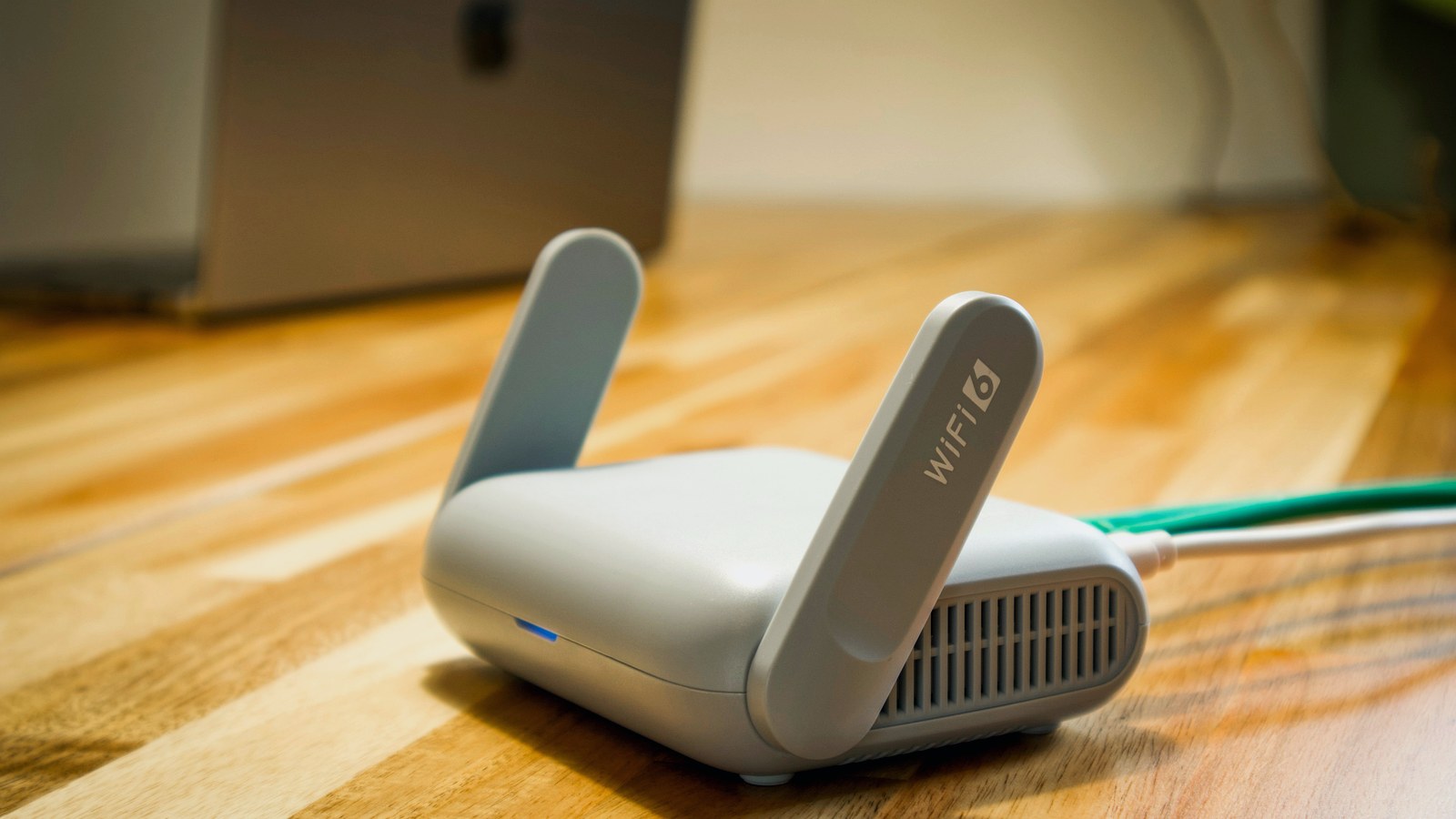
En la actualidad, los hogares cuentan con múltiples dispositivos conectados: consolas de videojuegos, PCs, televisores inteligentes, asistentes virtuales, cámaras IP y hasta refrigeradores con Wi-Fi. Esta explosión tecnológica ofrece comodidad, pero también crea un terreno fértil para ciberataques, saturación del ancho de banda y problemas de rendimiento.
Una de las mejores estrategias para mantener una red doméstica segura y eficiente es la segmentación mediante VLANs. Aunque suene técnico, es una solución accesible incluso para hogares con conexiones de ISP comunes como Liberty Puerto Rico o Claro.
¿Qué es una VLAN y por qué importa en el hogar?
Una VLAN (Virtual Local Area Network) permite dividir una red física en varias redes virtuales independientes. En términos sencillos, es como tener varios carriles dentro de tu red para que cada tipo de dispositivo fluya sin chocar con los demás.
- Aísla dispositivos para mejorar la seguridad.
- Evita que el tráfico del resto de la casa afecte tu conexión de gaming.
- Reduce la superficie de ataque; por ejemplo, dejando cámaras IP o dispositivos IoT lejos de tus equipos principales.
- Permite controlar el acceso a Internet de cada grupo de dispositivos.
- Facilita aplicar reglas de firewall específicas por segmento.
Solución recomendada: usa tu propio router
Equipo necesario
- Un router que soporte VLANs. Ejemplos: UniFi Dream Router, TP-Link Omada, ASUS AiMesh Pro, Mikrotik o equipos con firmware OpenWRT.
- Un switch administrable (opcional, pero recomendado). Opciones frecuentes: TP-Link TL-SG108E o UniFi Switch Lite 8.
- El módem del ISP en modo bridge. En muchos casos Liberty y Claro lo permiten llamando a servicio al cliente o activándolo según el modelo.
Guía para configurar VLANs en el hogar
1. Coloca el módem del ISP en modo bridge
Esto convierte al módem en un simple pasador de Internet hacia tu router principal. Así eliminas doble NAT, tu router obtiene control completo y la latencia suele mejorar.
- Elimina doble NAT.
- Le da a tu router el control real de la red.
- Puede reducir latencia y simplificar reglas.
Si tu ISP no permite bridge mode, una alternativa razonable es usar DMZ.
2. Configura tu router principal con VLANs
Una segmentación doméstica típica puede verse así:
| VLAN | Propósito | Ejemplos de dispositivos |
|---|---|---|
| 10 | Gaming | Consolas, PC gamer |
| 20 | Hogar general | Teléfonos, laptops, Smart TVs |
| 30 | IoT | Cámaras, bombillas inteligentes, asistentes |
| 40 | Invitados | Dispositivos de visitas |
| 50 | Administración | Router, NAS, paneles de control |
En tu router crearás estas VLANs y luego asignarás puertos físicos o redes Wi-Fi a cada una.
3. Configura SSID separados para cada VLAN
- Wi-Fi Gaming (VLAN 10): máxima prioridad, sin invitados ni IoT.
- Wi-Fi Casa (VLAN 20): acceso normal para la familia.
- Wi-Fi IoT (VLAN 30): aislado del resto para que una cámara o bombilla comprometida no llegue a tu PC.
- Wi-Fi Invitados (VLAN 40): limitado, sin acceso a tu red principal.
4. Aplica reglas de firewall por VLAN
Un ejemplo práctico de reglas sería:
- Gaming -> Internet: permitir conexión directa para minimizar latencia.
- Hogar -> Internet: rutas normales para navegación y streaming.
- Hogar -> Gaming: evitarlo para no mezclar tráfico ni añadir jitter innecesario.
- IoT -> Redes internas: bloquear; estos dispositivos deben mantenerse aislados.
- Admin -> Todo: acceso completo para gestión y mantenimiento.
Esta separación protege los equipos importantes y mejora el rendimiento de los más sensibles.
5. Configura QoS para priorizar gaming
Si tu router lo permite, prioriza la VLAN 10, limita ancho de banda a IoT y habilita reglas anti-bufferbloat. Eso ayuda a reducir ping, jitter y microcortes.
Alternativa simple si no quieres configurar VLANs
Si no quieres añadir un router avanzado, todavía puedes mejorar bastante la experiencia con una solución más sencilla: crear una red separada con un router neutro dedicado al gaming.
- Conecta un router adicional al módem del ISP.
- En ese router conecta únicamente tu consola o PC gaming.
- Deja que el resto de la casa use el Wi-Fi del ISP.
- Menos interferencias del tráfico familiar.
- Red más aislada.
- Costo relativamente bajo.
- Instalación rápida.
Recomendaciones para gamers en Puerto Rico
Liberty PR
- Muy buena velocidad.
- El módem integrado puede saturarse cuando hay muchos dispositivos conectados.
- Para VLANs reales, normalmente necesitarás usar un router propio.
- La latencia promedio hacia Estados Unidos suele rondar 25-40 ms.
Claro
- Escenario parecido al de Liberty cuando la red doméstica tiene mucha carga.
- Suele mejorar su estabilidad si configuras el modo bridge.
- También es recomendable usar un router dedicado para gaming o redes segmentadas.
Starlink
- Latencia más alta, típicamente entre 40-70 ms.
- Conviene evitar demasiados equipos conectados al router del kit para prevenir saturación.
Conclusión
La creación de VLANs en el hogar es una herramienta poderosa para mejorar la seguridad, el rendimiento y la estabilidad de la conexión. Aunque los módems estándar de Liberty y Claro no permiten configuraciones avanzadas, basta con añadir un router que soporte VLANs para transformar tu red doméstica en una arquitectura más profesional y protegida.
Ya sea para reducir el lag en juegos, aislar dispositivos IoT o proteger datos personales, la segmentación es una estrategia moderna que mejora significativamente la seguridad del hogar digital. Con el equipo adecuado, un poco de configuración y buenas prácticas, cualquier hogar puede acercarse a un nivel de orden que normalmente asociamos con una pequeña empresa.
Nota: La interfaz varía entre UniFi, Omada, pfSense u otros fabricantes, pero el enfoque sigue siendo el mismo: segmentar, controlar y verificar.
Homes now run on a surprisingly large mix of connected devices: game consoles, PCs, smart TVs, voice assistants, IP cameras, and even Wi-Fi appliances. That convenience is great, but it also creates more room for cyberattacks, bandwidth congestion, and performance problems.
One of the best ways to keep a home network secure and efficient is to segment it with VLANs. It may sound technical, but it is a practical option even for homes using common ISP connections such as Liberty Puerto Rico or Claro.
What is a VLAN, and why does it matter at home?
A VLAN (Virtual Local Area Network) lets you divide one physical network into several independent virtual networks. In plain language, it is like creating separate traffic lanes so different device groups do not keep crashing into each other.
- It isolates devices to improve security.
- It keeps general household traffic from hurting gaming performance.
- It reduces attack surface by separating cameras and IoT devices from your main systems.
- It gives you more control over Internet access by device group.
- It makes it easier to apply firewall rules to each segment.
Recommended approach: use your own router
Required gear
- A router that supports VLANs. Examples include UniFi Dream Router, TP-Link Omada, ASUS AiMesh Pro, Mikrotik, or hardware running OpenWRT.
- A managed switch (optional, but recommended). Common options include the TP-Link TL-SG108E or UniFi Switch Lite 8.
- Your ISP modem in bridge mode. In many cases Liberty and Claro allow this through support or model-specific settings.
How to configure VLANs at home
1. Put the ISP modem in bridge mode
This turns the modem into a simple Internet pass-through for your main router. It removes double NAT, gives your own router full control, and often improves latency.
- Eliminates double NAT.
- Gives your router real control over the network.
- Can simplify policy and improve responsiveness.
If your ISP does not allow bridge mode, DMZ is often the next best fallback.
2. Configure VLANs on your main router
A typical home segmentation plan might look like this:
| VLAN | Purpose | Example devices |
|---|---|---|
| 10 | Gaming | Consoles, gaming PC |
| 20 | General home | Phones, laptops, smart TVs |
| 30 | IoT | Cameras, smart bulbs, assistants |
| 40 | Guests | Visitor devices |
| 50 | Administration | Router, NAS, management tools |
You would create these VLANs on the router, then assign wired ports or Wi-Fi networks to each one.
3. Create separate SSIDs for each VLAN
- Gaming Wi-Fi (VLAN 10): top priority, no guests, no IoT.
- Home Wi-Fi (VLAN 20): normal Internet access for the family.
- IoT Wi-Fi (VLAN 30): isolated so a compromised camera or bulb cannot reach your PC.
- Guest Wi-Fi (VLAN 40): limited access, no visibility into your main network.
4. Apply firewall rules by VLAN
A practical rule set might look like this:
- Gaming -> Internet: allow direct access to minimize latency.
- Home -> Internet: allow normal browsing and streaming paths.
- Home -> Gaming: avoid it to reduce traffic mixing and extra jitter.
- IoT -> Internal networks: block it; keep those devices isolated.
- Admin -> Everything: full access for management and maintenance.
This structure protects the devices that matter most and improves performance for the ones that are most sensitive.
5. Configure QoS to prioritize gaming
If your router supports it, prioritize VLAN 10, cap bandwidth for IoT, and enable anti-bufferbloat rules. That can reduce ping spikes, jitter, and brief connection hiccups.
A simple alternative if you do not want to configure VLANs
You can still improve your setup with a simpler approach: create a separate gaming network using a dedicated neutral router.
- Connect a second router to the ISP modem.
- Connect only your console or gaming PC to that router.
- Let the rest of the home stay on the ISP Wi-Fi.
- Less interference from household traffic.
- Better isolation.
- Lower cost than a full redesign.
- Fast setup.
Recommendations for gamers in Puerto Rico
Liberty PR
- Very good speeds.
- The integrated modem tends to struggle when many devices are active at once.
- True VLAN segmentation usually requires your own router.
- Average latency to the mainland U.S. is often around 25-40 ms.
Claro
- A similar situation when the home network is heavily loaded.
- Bridge mode often improves stability.
- A dedicated gaming router or segmented setup is still recommended.
Starlink
- Higher latency, often around 40-70 ms.
- It helps to avoid overloading the kit router with too many active devices.
Conclusion
Setting up VLANs at home is a powerful way to improve security, performance, and overall connection stability. Standard Liberty and Claro modem and router units are not built for advanced segmentation, but adding a VLAN-capable router can completely change what your home network is capable of.
Whether your goal is lower gaming lag, safer IoT isolation, or stronger protection for personal data, segmentation is a modern strategy that pays off quickly. With the right equipment, a bit of configuration, and good habits, a home network can start behaving with the discipline of a small business environment.
Note: the interface will differ between UniFi, Omada, pfSense, and other platforms, but the method stays the same: segment, control, verify.